JoinPD.com: Start a JoinPDcom Session with a Peardeck Code
Looking for joinpd.com? You are in the right place. The original joinpd.com website no longer exists as its own page, but it still works as a shortcut that automatically redirects to the current Pear Deck join page. Below are the exact steps to enter a Pear Deck join code and start your lesson in under a minute.

How to join a Pear Deck lesson at joinpd.com (4 steps)
Step 1. Open https://app.peardeck.com/join in a new tab. This is the current live Pear Deck join page. You can also just type joinpd.com into your browser address bar and it will automatically redirect you to the same page.
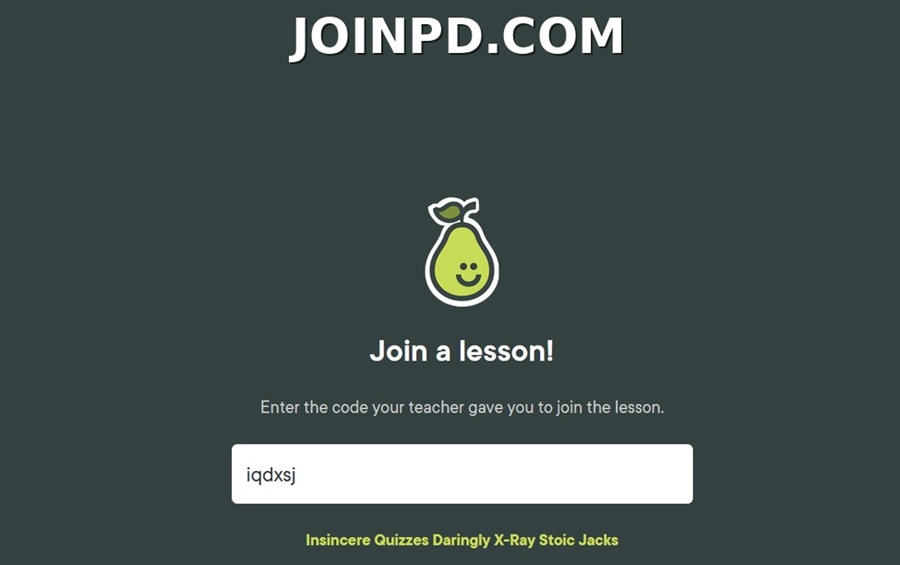
Step 2. Enter the join code your teacher gave you into the white box. The code is 6 or 7 letters (letters only, no numbers). As you type, Pear Deck displays a fun mnemonic phrase where each letter of your code becomes the first letter of a word. For example, if you type ABCDEF, the screen might show:
“Acidic Bandanas Calmly Drive Exothermic Flashlights”
Why does joinpd.com do this?
The word display is a built-in memory and readability aid. It helps students who hear the code spoken across a noisy classroom, and it helps teachers say the code out loud without confusing letters that sound alike (like B and D, or M and N). Similar-sounding letters become clearly different words. It also helps students who are learning to spell, and gives everyone a quick visual check that they typed the letters in the right order before hitting Join.
Step 3. Click the blue Join button. The button only becomes clickable after you have entered 5, 6, or 7 letters (matching the code length).
If the session does not exist, the screen shows a red error message: “Couldn’t find a session for ‘a b c d e f'”. If you see this, double-check the code with your teacher. Pay special attention to the letters O and L, which can look like the numbers 0 and 1 in some fonts (the code only ever contains letters).
If the session exists, one of two things happens: (a) if your teacher requires student login, you are prompted to sign in with your Google or Microsoft school account first, then you are placed into the live lesson; (b) if student login is not required, you enter the session immediately and see the current slide the teacher is presenting. From that point on, the slides on your screen sync with your teacher’s presentation in real time.
That is everything you need to actually join a lesson. The rest of this page explains what happened to joinpd.com, how Pear Deck join codes work, how to log in as a student or teacher, common typos that lead to spam sites, and answers to the questions students and teachers ask most about joinpd.com.
Why joinpd.com Does Not Exist as Its Own Website Anymore
For years, joinpd.com was the standalone entry point where students entered a Pear Deck code to join a lesson. In 2023, Pear Deck consolidated its student-facing pages under the main product domain, and joinpd.com stopped being a separate site. Instead, the domain now works as a permanent redirect.
What this means in practice: when you type joinpd.com into your browser and press Enter, the browser first hits the old joinpd.com URL, then instantly forwards you to https://app.peardeck.com/join, which is the current live join page. You do not need to remember the new URL. The joinpd.com shortcut still works for anyone who has bookmarked it or memorized it over the years, so both approaches take you to the same destination.
This is why so many articles across the web (and even inside your school’s LMS) still say things like “go to joinpd.com” or “visit joinpd.com and enter your code.” Those instructions are not out of date. They still work. The address bar just briefly shows the redirect happening before landing on the real join page.
What Is Pear Deck?
Pear Deck is an interactive presentation and formative assessment tool designed for classrooms. Teachers create their lessons in Google Slides or Microsoft PowerPoint, add Pear Deck interactive elements (multiple choice questions, drawing prompts, drag-and-drop activities, short-answer questions, polls, and so on), then present the slides live to a class. Students follow along on their own devices, and their responses appear on the teacher’s dashboard in real time.
Pear Deck was acquired by GoGuardian in 2022 and is used by tens of millions of students and teachers around the world. It works on Chromebooks, iPads, laptops, and phones. Students do not need to install any app. Everything runs in a normal web browser, which is why entering a code at joinpd.com is such a common part of the classroom routine.
The whole system is built around one very small friction point: getting every student into the same live session at the same time. That is exactly what joinpd.com (and now app.peardeck.com/join) was designed to solve.
How joinpd.com Join Codes Work
Every time a teacher starts a live Pear Deck presentation, the platform generates a fresh joinpd.com join code. The code is always 5, 6, or 7 letters, contains only alphabet letters (never numbers), and is case-insensitive (you can type it in uppercase or lowercase, both work).
Teachers issue the code by displaying it on the projector screen at the start of class. It is common for teachers to also copy the code into Google Classroom, Microsoft Teams, or a chat channel so students who arrived late or who lost visibility of the projector can still join. The teacher’s screen shows both the code (as letters) and the mnemonic phrase (as words), and each rotates automatically every few seconds so students who missed one can catch the other.
Every code expires when the teacher ends the session, which is usually at the end of the class period. Codes cannot be reused across sessions, so if the same class meets again the next day, the teacher generates a new one. This is a security feature: it prevents students from sharing old codes to sneak into future classes, and it means each session’s participant list stays clean.
If your teacher pauses a lesson and resumes it later, the same joinpd.com code stays valid until the session is fully closed. Late arrivals can enter the same code and pop into the current slide the class is on.
Are There Secret joinpd.com Codes That Let You Join Other People’s Sessions?
Short answer: no. There is no back door that lets you enter random joinpd.com codes and stumble into someone else’s active class. The system is designed to prevent exactly this.
Every join code is randomly generated at the moment the session starts. Codes are short enough to be typeable but long enough that random guessing almost never lands on a valid live session. Even if you did somehow guess an active code, most teachers require students to authenticate with their school Google or Microsoft account, so a stranger who did not belong in the class would either be immediately visible to the teacher (as an unknown name in the roster) or blocked at the authentication step entirely.
You will sometimes see forum posts or TikTok videos claiming to share “leaked joinpd.com codes” to hop into random classrooms. These are essentially always fake. Even if a code was real at some point, it expired the moment that session ended, which is usually within an hour of it being posted. There is no meaningful way to join another school’s active lesson through joinpd.com, and attempting to do so violates Pear Deck’s Terms of Service and possibly your school’s acceptable-use policy.
If you are a student who genuinely lost your code, ask your teacher. If you are a teacher who wants to invite students to review a past Pear Deck deck, use the “Assign as a Homework” feature, which generates a different type of shareable link that works after the live session has ended.
joinpd.com Login: How Students and Teachers Sign In
The joinpd.com page itself does not have a login form. You just enter the code and go. But depending on how your school has set things up, you may be prompted to sign in with your school account after entering the code. Here is where to log in for each type of user:
Student login:
if you need to sign in as a student, go to https://www.peardeck.com/student-log-in. On that page you will see two big buttons: Sign in with Google and Sign in with Microsoft. Click whichever matches your school’s account system. If your school uses Google Workspace for Education, click Google and use your school Gmail address (usually ends in .edu or your school domain). If your school uses Microsoft 365, click Microsoft and use your school email. You should not need to create a separate password. The whole thing is handled by your school single sign-on.
Teacher login:
teachers sign in at https://app.peardeck.com/home?action=signin. The same two options appear: Sign in with Google or Sign in with Microsoft. This takes you to your teacher dashboard where you can create new decks, launch sessions, view past student responses, and manage your class rosters. Free and Premium teacher accounts both use this login page.
If either sign-in fails, the most common cause is that your school’s IT admin has restricted third-party apps for your account. In that case, ask your school’s technology coordinator to whitelist Pear Deck in the Google Admin Console or Microsoft Entra admin center. Once approved, sign-in works instantly.
Troubleshooting Guide: Why Can’t I Join or Log In to My Pear Deck Lesson?
If you are a student (or a parent helping a student) and the join screen is not working, do not worry. Almost every joining problem comes down to one of a handful of simple, fixable things. Work through this list from top to bottom and you will get into the lesson. This guide is written in plain language so kids and grown-ups can both follow along.
Problem 1: “Couldn’t find a session” error, usually a typing mistake
This is the most common problem by far. When the screen shows a red message like “Couldn’t find a session for…”, it almost always means one letter in your code was typed wrong. Here is what to check, in order:
- The letter O versus the number 0 (zero). Pear Deck join codes are made of letters only, never numbers. If you typed a zero (0), replace it with the letter O. This is the single most common mistake.
- The letter l (lowercase L) versus the number 1 (one), and versus the capital letter I. These three all look alike in some fonts. The code only ever uses letters, so if you typed a 1, change it to an l or an I. When in doubt, look at the mnemonic words on the teacher’s screen (more on that below) to figure out which letter it really is.
- Letters in the wrong order. It is easy to swap two letters when typing quickly. Read the code out loud one letter at a time and match it to the screen.
- Extra spaces. Do not put any spaces in the code. Type the letters with nothing between them.
How the mnemonic words help you type the right letters
When your teacher’s screen shows the code, it also shows a fun phrase where each word starts with a letter of the code. For example, if the code is iqdxsj, the screen shows “Insincere Quizzes Daringly X-Ray Stoic Jacks.” This is not just for fun, it is a spelling helper. If you are unsure whether a character is a zero or the letter O, look at the word: the word “Otter” tells you it is the letter O, and there is no word that starts with a number. So the phrase removes all the confusion between O and 0, or l and 1. When you are stuck on a letter, always read the matching word.
Problem 2: Do I need to worry about Caps Lock?
No. You do not need to worry about capital letters at all. Pear Deck ignores whether letters are uppercase or lowercase, and it automatically turns everything into lowercase for you. So whether Caps Lock is on or off, the code will still work. Type it however is easiest, big letters or small letters, it makes no difference.
Problem 3: The session has not started yet, or it already ended
A join code only works while the teacher’s session is actually running. Two things can go wrong here:
- The teacher has not started the lesson yet. If you try to join before the teacher clicks “Start Lesson,” the code will not work. Wait a moment and try again once the teacher says the lesson is live.
- The session has expired or been closed. Codes stop working once the teacher ends the session, which is usually at the end of the class. Old codes from yesterday’s class will not work today. If you are sure you typed the code correctly but it still fails, ask your teacher whether the session is still open, and ask for a fresh code if needed.
Problem 4: The computer is not connected to Wi-Fi or the internet
Pear Deck is a live tool, so it needs a working internet connection the whole time. If the page will not load at all, or it freezes, check the internet first:
- Look for the Wi-Fi symbol on your device and make sure it shows you are connected.
- Try opening any other website. If that other website also will not load, the problem is your internet, not Pear Deck.
- If you are at home, restarting the Wi-Fi router (unplug it, wait 15 seconds, plug it back in) fixes many connection problems.
- If the connection drops during a lesson, the page will show a “reconnecting” message and usually pick back up on its own once you are back online.
Problem 5: You are on the wrong “join a lesson” page
Make sure you are on the correct page. The real join page is joinpd.com (which automatically forwards you to app.peardeck.com/join). If you typed the address slightly wrong, you may have landed on a fake look-alike site or a page that does not work. Double-check the address bar. If it does not clearly show a Pear Deck page with a white code box, close the tab and carefully retype joinpd.com. Never enter your school login details on a page you are not sure about.
Why Can’t I Log In? Understanding the Different Pear Deck Login Pages
Here is something that confuses a LOT of students and parents: “Pear Deck” is actually a whole family of different products, and each one has its own separate login page. If you try to log in on the wrong one, it will not work, even if your username and password are perfectly correct. The trick is knowing which product your teacher is using, then going to the matching login page.
There are four different Pear Deck products, and they each have their own student login page. Here is what each one is and where to sign in:
1. Pear Deck (the interactive slides tool)
This is the main product, the one that uses join codes for live lessons. If your teacher is presenting slides that you follow along with on your own device, this is the one you want. To join a live lesson, you use a code at joinpd.com. If you need to sign in as a student, the student login page is: https://app.peardeck.com/join. Most students only ever need this one.
2. Pear Practice (formerly called Giant Steps)
Pear Practice is a separate tool for practice activities and skill-building exercises. It used to be called Giant Steps, so if your teacher mentions “Giant Steps,” this is the same thing under its new name. It does NOT use the same login as the main Pear Deck slides. The student login page for Pear Practice is: https://practice.peardeck.com/sign-in/student. If your teacher assigned “practice” work and your normal login is not working, try this page instead.
3. Pear Assessment (formerly called Edulastic)
Pear Assessment is the testing and quizzing tool. It used to be called Edulastic, so if you have used Edulastic before, this is the same product with a new name. This is where you go to take assessments, tests, and graded quizzes. It has its own login, completely separate from the slides tool. The student login page for Pear Assessment is: https://assessment.peardeck.com/login. If your teacher said “we have a test on Pear Assessment” or “log in to Edulastic,” this is your page.
4. Pear Deck Tutor (formerly called TutorMe)
Pear Deck Tutor connects students with live online tutors for one-on-one help. It used to be called TutorMe. This is a totally different service from classroom slides or assessments, and it has its own student and tutor login. If your school gives you access to online tutoring through Pear Deck, this is where you sign in. Ask your teacher or school for the correct Pear Deck Tutor login link, as schools often use a custom sign-in page for this service.
The most important login tip
If your login is not working, the first question to ask is: “Which Pear Deck product am I actually trying to use?” Nine times out of ten, a login problem is really a student trying to sign in to the wrong one of these four products. Match the product to the right page above and the login will usually work right away.
Real Login Problems (and How to Fix Them)
Beyond picking the right page, here are the specific login problems students report most often, along with the fixes that actually work.
Problem: “I’m signed in, but it says my account is wrong”
This usually happens when your device is logged into more than one Google or Microsoft account at the same time, for example, your personal Gmail AND your school email. Pear Deck may be trying to use the wrong one. The fix: sign out of all accounts, then sign back in using ONLY your school account. On a school Chromebook, make sure the Chrome browser itself is signed in with your school account, not a personal one.
Problem: “It keeps loading forever or freezes when I try to log in”
Old, stored browser data is usually the cause. The fix that works most often: open a new Incognito window (in Chrome, press Ctrl+Shift+N, or Cmd+Shift+N on a Mac) and log in fresh from there. Incognito mode ignores the old saved data that was causing the conflict. If that works, you can then clear your normal browser’s cache and cookies to fix it permanently.
Problem: “My school uses a login portal like ClassLink or NCEdCloud”
Many schools route all logins through a central portal such as ClassLink, NCEdCloud, or Clever. If your school uses one of these, do not try to log in directly. Instead, log in to your school portal first, then click the Pear Deck icon from inside that portal. This makes sure your account is recognized correctly.
Problem: “The page won’t work and mentions JavaScript”
Pear Deck needs JavaScript turned on in your browser to run. On school devices this is almost always on already, but if you see a message saying “this site doesn’t work properly without JavaScript enabled,” check your browser settings or try a different browser like Chrome or Firefox. On a personal device, an ad-blocker or privacy extension can sometimes block Pear Deck, so try turning those off for the page.
Problem: “It worked on the computer but not my phone” (or the other way around)
Pear Deck works on phones, tablets, Chromebooks, and computers, but a very old browser can cause trouble. Make sure your browser is up to date. If one device is being stubborn, try joining on a different device with the same code, since the code works on any device. If your teacher requires a school login, your phone may not be signed into your school account, which is a common reason a phone fails while the school Chromebook works.
Problem: “I still can’t get in after trying everything”
If you have checked the code, the internet, the login page, and cleared your browser, and it still will not work, the fastest fix is to simply ask your teacher. Teachers can see who has joined on their own screen, they can generate a brand-new code, and they can often let you in a different way (such as sending a direct join link instead of a code). The teacher’s dashboard gives them options that students do not have, so when in doubt, ask.
Quick Checklist Before You Panic
Run through this fast checklist and you will solve the vast majority of problems on your own:
- Did I type the letter O instead of a zero, and the letter l instead of a 1? (Check the mnemonic words to be sure.)
- Are the letters in the right order, with no spaces?
- Has the teacher actually started the lesson, and is the session still open?
- Is my device connected to Wi-Fi or the internet?
- Am I on the correct page, joinpd.com, and not a misspelled look-alike?
- If logging in: am I on the right page for the right product (Pear Deck, Pear Practice, Pear Assessment, or Pear Deck Tutor)?
- Am I signed in with my school account, not a personal one?
- If all else fails, did I ask my teacher?
Do not stress if the code does not work on the first try. It is almost always a tiny typo like a zero instead of an O, and it takes just a few seconds to fix. Once you know these steps, joining a Pear Deck lesson through joinpd.com becomes quick and easy every single time.
Common joinpd.com Misspellings to Avoid: joinpdcom, joinpd.ocm, joinpd.join, jionpd.com, joinpdx.com, joinpd.con
Because so many students type joinpd.com in a hurry, misspellings are extremely common. Here are the six most frequent typos that will NOT take you to the real Pear Deck join page:
- joinpdcom (missing the period), this is not a valid domain. The browser will not know where to send you. Always include the dot: joinpd.com.
- joinpd.ocm (transposed letters in .com), this typo often exists as a real registered domain owned by domain squatters, not Pear Deck. It may show ads, a fake login page, or malware. Type the letters carefully.
- joinpd.join (wrong top-level domain), .join is not a valid TLD in this context. This will fail to resolve, or worse, land on a typo-squatter’s site.
- jionpd.com (transposed i and o at the start), very common typo, especially on phones. Some spammers register these transposition typos to catch traffic. Slow down and check the address bar.
- joinpdx.com (extra x), not owned by Pear Deck. Any content shown on this domain is not associated with your school lesson.
- joinpd.con (n instead of m), one of the most common misspellings because n is right next to m on the keyboard. Always check the last letter is “m”, not “n”.
More joinpd.com Typos to Watch For: joinpd.come, joinpd.comm, joinpb.com, joinpd.cmo, joinpd.coom
Beyond the top six, another cluster of misspellings pops up frequently. These are especially risky because most of them redirect to advertising, spam, or adware sites that pay for that misspelled traffic:
- joinpd.come (extra e at the end), not a valid Pear Deck URL. Many typo-squat sites register this variation.
- joinpd.comm (double m at the end), another common typo from fast typing. Not owned by Pear Deck.
- joinpb.com (b instead of d), the letters d and b are visually similar on some phone keyboards. Double-check.
- joinpd.cmo (transposed m and o in .com), very common typo. This misspelled domain has been used for spam sites in the past.
- joinpd.coom (extra o in .com), sometimes serves ads or scam offers, definitely not a Pear Deck-owned domain.
If you ever land on any page that does not clearly look like Pear Deck (the real page has a white box for the code, a Pear Deck logo, and the app.peardeck.com URL in your address bar after the redirect), close the tab immediately and retype joinpd.com carefully. Do not enter any personal information, do not sign in with your school account, and do not click any download prompts on a suspicious page.
The safest habit is to bookmark the real page (either joinpd.com or https://app.peardeck.com/join) so you never have to retype it. Most modern browsers will autocomplete joinpd.com from your history after you have visited it correctly once or twice.
joinpd.com FAQ (Frequently Asked Questions)
Where do I find the class code on Pear Assessment?
Pear Assessment (formerly Edulastic) and Pear Deck are two different products in the same product family. For Pear Deck, the class code is displayed on the teacher’s projector screen when they start a live session, and can also be shared in Google Classroom or Microsoft Teams. For Pear Assessment, class codes are found by logging into your Pear Assessment account and going to My Classes. If you are trying to join a live Pear Deck lesson, you want joinpd.com, not Pear Assessment.
Can I use Pear Deck for free?
Yes. Pear Deck offers a free tier for both teachers and students. Students never pay for anything. Teachers get free access to core interactive question types, real-time student responses, and live session hosting through joinpd.com. Some advanced features (like the immersive reader, teacher feedback tools, and the full library of premium templates) require a paid Pear Deck Premium subscription, but you can run effective lessons without ever paying.
What is a Pear Deck?
A Pear Deck is an interactive slide presentation built inside Google Slides or Microsoft PowerPoint using the Pear Deck add-on. It looks like a normal slide deck, except certain slides include interactive elements where students can respond in real time. The teacher launches the deck as a live session, students join at joinpd.com with a code, and the teacher can see all student responses instantly on their dashboard.
How do I find a classroom join code?
Your teacher generates and shares the join code at the start of each class session. Check the projector screen at the front of the room. If you cannot see it, check your Google Classroom or Microsoft Teams stream. If it is still missing, ask your teacher directly. There is no way for students to look up a code themselves.
What is your class code for Pear Deck?
Class codes are unique to each teacher’s session and change every time. Only your teacher can give you the correct code for their live lesson. Once you have it, enter it at joinpd.com (or app.peardeck.com/join, which is the same page).
How do I find the class code in Google Classroom?
Teachers often paste the Pear Deck join code into the Google Classroom stream when class starts. Open the stream tab in Google Classroom, look for the most recent post from your teacher, and the code will be there. If your teacher used a Pear Deck join link instead of a raw code, clicking it will send you straight to the session (through joinpd.com) with the code pre-filled.
Is Pear Deck safe for students?
Yes. Pear Deck is compliant with FERPA, COPPA, and GDPR-K, and is certified by iKeepSafe. Student responses are only visible to the teacher hosting the session. Pear Deck does not sell student data or use it for advertising. The joinpd.com join flow itself uses HTTPS, and student authentication (when required) is handled by your school’s Google or Microsoft account, not by a separate Pear Deck password.
How much does Pear Deck cost?
Pear Deck is free for individual teachers to start using immediately. Pear Deck Premium for individual teachers costs around $149.99 per year (list price, though discounts are common). Site licenses for entire schools or districts are quoted based on student enrollment and typically negotiated by the district’s technology purchasing team. Students never pay anything, ever.
Which is better, Nearpod or Pear Deck?
Both are excellent interactive lesson platforms, and the choice depends on your workflow. Pear Deck integrates deeply with Google Slides and Microsoft PowerPoint, so if your school already uses those tools, Pear Deck’s joinpd.com workflow feels like a natural extension. Nearpod is a standalone platform with its own slide editor and a larger built-in content library, which some teachers prefer for elementary grades. Pear Deck tends to be simpler for quick daily formative checks; Nearpod tends to have more content and gamification features. Neither is objectively better.
Why is joinpd.com not loading for me?
Try these fixes in order: (1) refresh the page, (2) check your internet connection, (3) try a different browser like Chrome or Firefox, (4) clear your browser cache and cookies for joinpd.com and peardeck.com, (5) try going directly to app.peardeck.com/join to skip the redirect step, (6) confirm your school network is not blocking Pear Deck (some school firewalls block third-party tools by default and need an admin to whitelist them).
Does joinpd.com work on iPhones and Android phones?
Yes. joinpd.com works on any modern mobile browser: Safari on iPhone or iPad, Chrome or Samsung Internet on Android, and Firefox on either platform. Pear Deck also has a mobile-friendly interface designed for small screens. You do not need to install any app to join a session on your phone.
Can I join a Pear Deck lesson without an account?
Sometimes yes, sometimes no. It depends on how your teacher configured the session. If the teacher enabled “student login required,” you must sign in with your school Google or Microsoft account before entering the session. If the teacher chose “no login required” (guest mode), you can enter the code at joinpd.com, type your name, and go straight in. Guest mode is common for younger students who do not have their own email accounts.
What happens if I enter the wrong code at joinpd.com?
You will see a red error message that says “Couldn’t find a session for [your code]”. This means one of three things: (1) you mistyped a letter, (2) the session has ended, or (3) the session never existed. Double-check the letters with your teacher, watch out for O vs 0 and L vs 1 (though the real code contains only letters), and try again.
Can I rejoin a Pear Deck session after I close the tab?
Yes, as long as the session is still active. Just go back to joinpd.com, enter the same code, and you will rejoin at whatever slide the class is currently on. If your teacher required login, you may be signed in automatically. Your previous responses are still saved.
How long does a joinpd.com session code stay active?
The code stays valid until the teacher ends the session. In practice, this is usually the length of one class period (30 to 90 minutes). If your teacher pauses and resumes across multiple days, the code can technically stay valid longer, but most teachers close each session at the end of class and start a new one next time.
Can teachers see if I opened joinpd.com and joined late?
Yes. The teacher dashboard shows the time each student joined the session, so a teacher can see if you joined late. Some teachers use this data for attendance. If you are running late, joining through joinpd.com as soon as you can is better than not joining at all, since teachers can also see which students did not join.
Can I use joinpd.com on a Chromebook?
Yes. Chromebooks are one of the most common devices used with Pear Deck. Just open Chrome, go to joinpd.com, enter the code, and you are in. No installations, no permissions needed.
Do I need Wi-Fi to use joinpd.com?
Yes. Pear Deck is a live, real-time platform, so you need an active internet connection throughout the session. School Wi-Fi is usually enough. If your Wi-Fi drops mid-session, the page will show a “reconnecting” message and pick back up automatically once you are back online.
What is the difference between joinpd.com and peardeck.com?
joinpd.com is the student-facing shortcut for joining a live lesson. Peardeck.com is the main marketing and teacher-facing website, where teachers can learn about the platform, sign up for accounts, and access the teacher dashboard. Students almost never need to visit peardeck.com directly, they just go to joinpd.com with the code from their teacher.
Is joinpd.com an official Pear Deck URL?
Yes. joinpd.com is officially owned and operated by Pear Deck (now part of GoGuardian). It is safe to visit, uses HTTPS encryption, and automatically redirects to the current official join page at app.peardeck.com/join. Any site claiming to be joinpd.com with a different URL (like joinpd.net, joinpd.org, or one of the misspellings listed above) is not official.
Can I use joinpd.com from home?
Absolutely. As long as you have the join code your teacher gave you and an internet connection, joinpd.com works from anywhere: home, library, cafe, another school. This is what makes Pear Deck useful for hybrid classes, remote learning days, and homework assignments.